
How to shrink Byteplus EBS system volume
As almost every cloud engineer knows, cloud instance EBS storage volume is only easily expandable, but not allowed to shrink, but still, there are actually some way to achieve this, if you think the process is more worth it than reinstall everything on a new instance ^_^
OK, about how to shrink a EBS root volume on AWS Amazon Linux 2 / 2023 with default disk format XFS, Benedikt Langens already shared here on medium 3 years ago and I verified it's working on Amazon Linux 2 last year.
But for Byteplus, unlike AWS, EBS storage volume is separated into system volume and data volume, you can't attach a data volume to an instance to boot it up.
Byteplus default system volume format is ext4, and they allow export to and import from qcow2 virtual disk format for custom images, so how to manipulate the partition / GPT data of the qcow2 file would be the trick.
create qcow2 file of the system volume
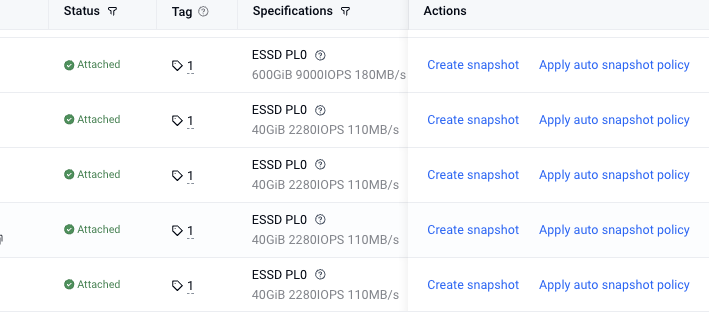
create snapshot from system volume
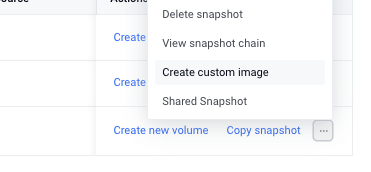
then create custom image from the snapshot
then export the image to a TOS bucket

and we got the qcow2 virtual image

the origin volume is 40GB, the qcow2 file exported to TOS is around 16GB size, our target is making it as a 20GB volume, which is smallest size Byteplus EBS volume allows.
manipulating the qcow2 file
First we can download the qcow2 to a linux instance (I am using centos9) with AWS CLI, we can install qemu tools then check the info of the qcow2 file
sudo dnf install qemu-kvm
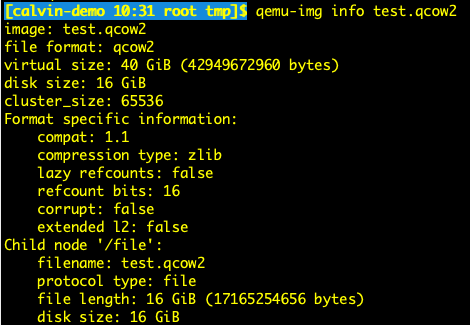
qemu-img info test.qcow2
Here we can see "virtual size: 40GiB"
Next we are gonna connect the qcow2 to the linux instance with network block device
modprobe nbd
lsblk
In lsblk will see /dev/nbd0, /dev/nbd1, etc, these are network block devices.
connect the qcow2 image file to /dev/nbd0 so we can check the detail of partition and GPT.
qemu-nbd --connect=/dev/nbd0 test.qcow2
lsblk
lsblk -f /dev/nbd0
parted /dev/nbd0 unit MiB print
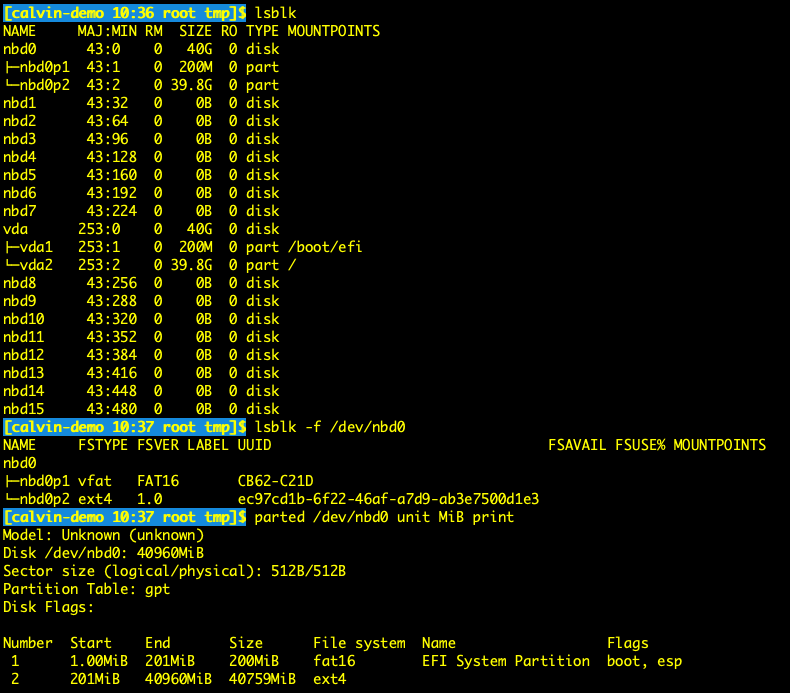
lsblk will show 2 partitions appear under /dev/nbd0, it's a GPT disk and come with 2 partition , one is EFI and another is ext4
Calculate the new size of the volume
With the information we got above, now we are gonna calculate the new size for new virtual image file, we gonna wize d
dumpe2fs -h /dev/nbd0p2 | grep 'Block'
We got
Block count:              10434299
Block size:               4096
10434299 * 4096 / 1024^3 = 39.8 GiB, this is our origin volume size 40GB, now we know each Block is 4096 Byte on this volume.
Now we want to know how many data actually on the volume
resize2fs -P /dev/nbd0p2
We got
Estimated minimum size of the filesystem: 2836637
2836637 * 4096 / 1024^3 = 10.82 GiB,
so here are what we gonna do:
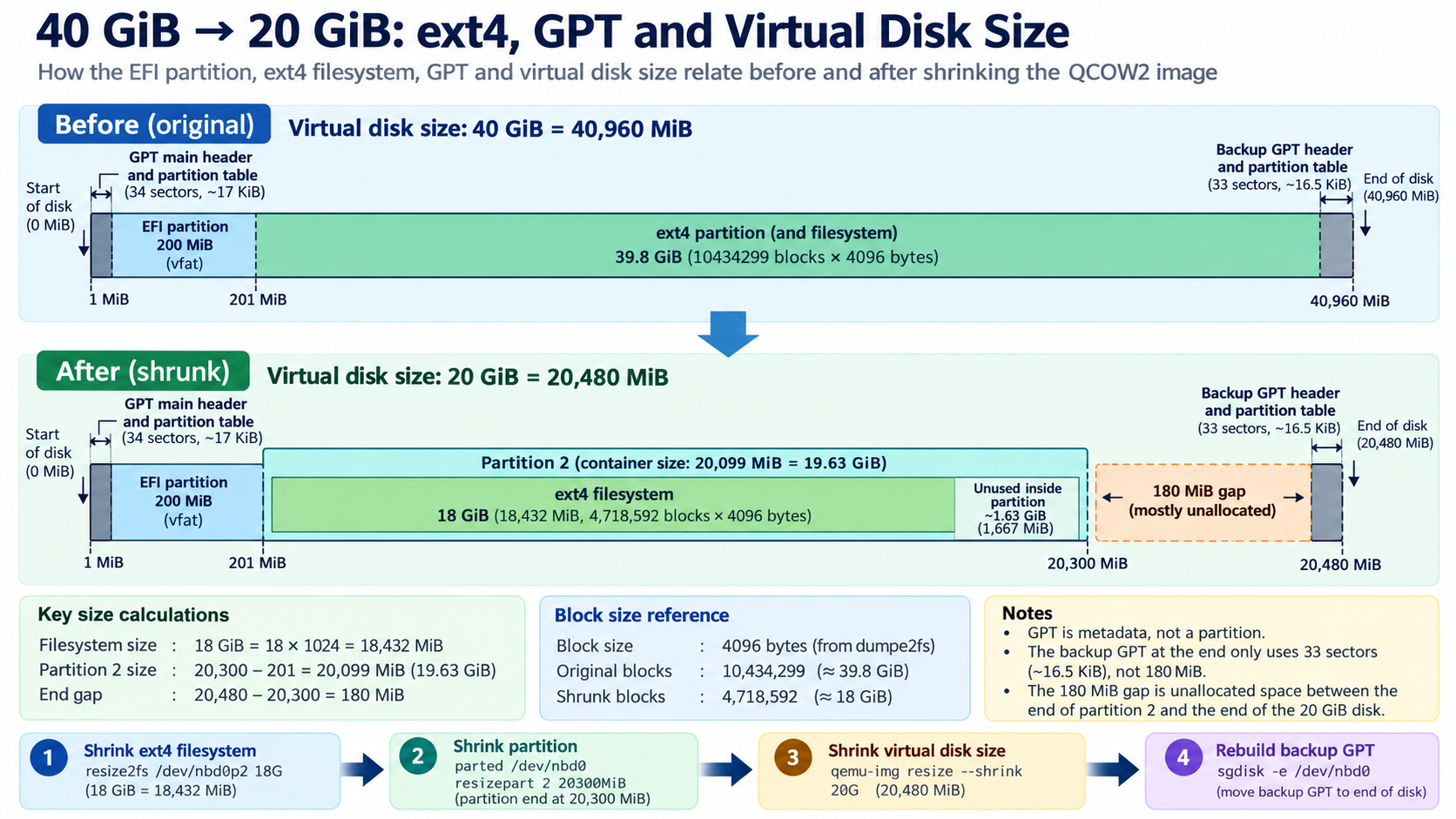
- the new volume size will be 20 GiB = 20* 1024 = 20480 MiB
- resize the ext4 filesystem to 18 GiB = 18 * 1024 = 18432 MiB, larger than 10.82 GiB from "resize2fs -P" above
- Since EFI partition size 200MiB, 2 partition total will be 200 + 18432 = 18632 MiB
- The end position of partition 2 will be set to 20300MiB , because backup GPT header will be at the last sector of the disk, so as long as it is larger than the last block of ext4 partition and smaller than the volume size , we should be safe.
- 20480 MiB - 20300 MiB = 180 MiB, this will be free space including GPT header backup at the last sector.
Resize the ext4 partition
First we check the partition
e2fsck -f /dev/nbd0p2
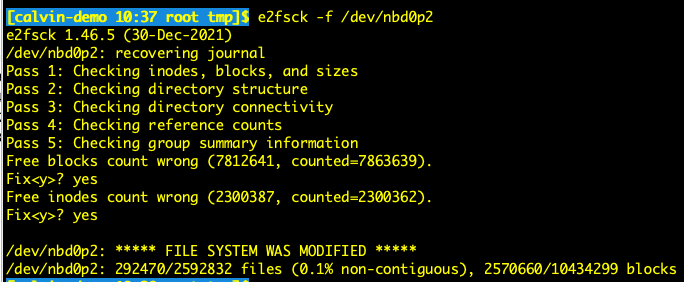
The error is because of we create the snapshot when instance still running, safe to fix.
then we resize with
resize2fs /dev/nbd0p2 18G
This 18G here default unit meaning is GiB
dumpe2fs -h /dev/nbd0p2 | grep 'Block'
the result change to
Block count:              4718592
Block size:               4096
4718592 * 4096 / 1024^3 = 18 GiB
resize the GPT part
parted /dev/nbd0
these the command we will use
unit MiB
print
resizepart 2 20300MiB
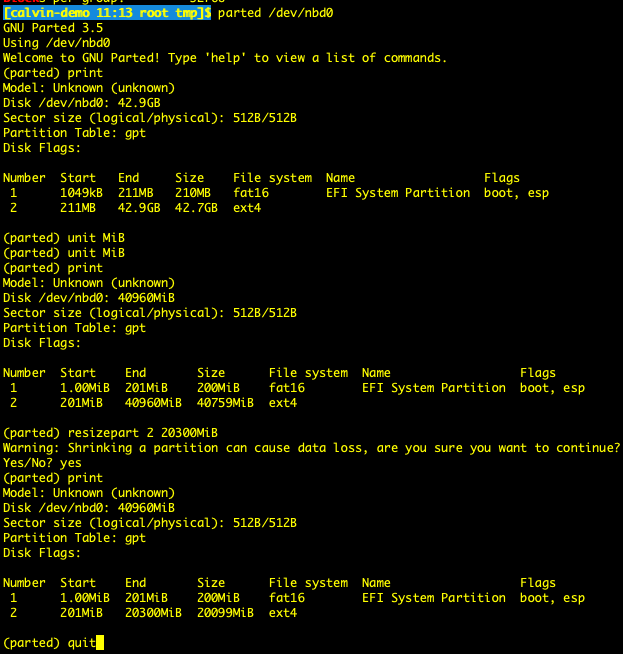
Notice, the default unit of "parted" is MB/GB, which is 1000x1000 and allow fuzzy, MiB and GiB is 1024x1024, which is more accurate in "parted" tool for disk exact location.
after that, we can run
partprobe /dev/nbd0
sync
to make sure the change take effect and written to disk
check again with
lsblk -o NAME,SIZE,FSTYPE,TYPE,MOUNTPOINTS /dev/nbd0
e2fsck -f /dev/nbd0p2
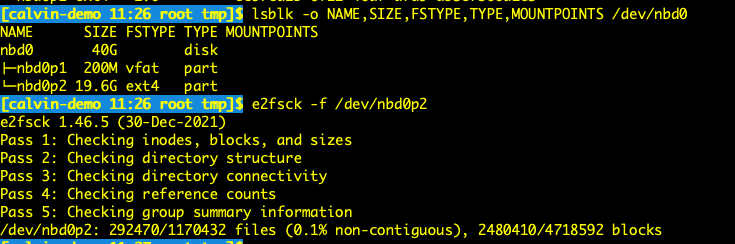
Change qcow2 image virtual size
first we disconect it
qemu-nbd --disconnect /dev/nbd0
lsblk /dev/nbd0
resize
qemu-img resize --shrink -f qcow2 test.qcow2 20G
the 20G here default unit is 20GiB.
check again with "qemu-img info test.qcow2".
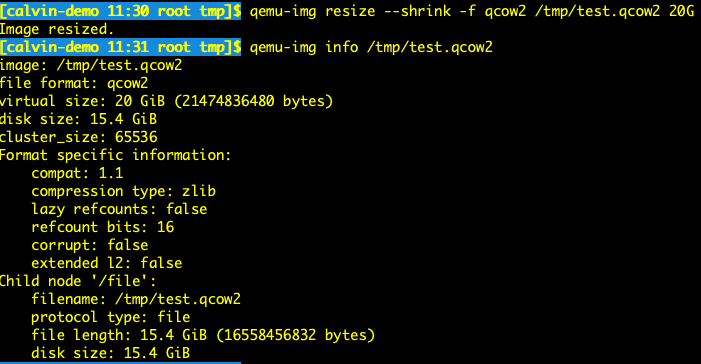
rebuild the GPT backup header
Because last step we shrink the virtual size of the qcow2 image, GPT backup header at the last sector of the disk would be gone, we would need to rebuild it
Connect the qcow2 again, because we used /dev/nbd0 earlier, I suggest using /dev/nbd1 this time, to avoid any info conflict in system.
qemu-nbd --connect=/dev/nbd1 test.qcow2
sgdisk -v /dev/nbd1
sgdisk -p /dev/nbd1
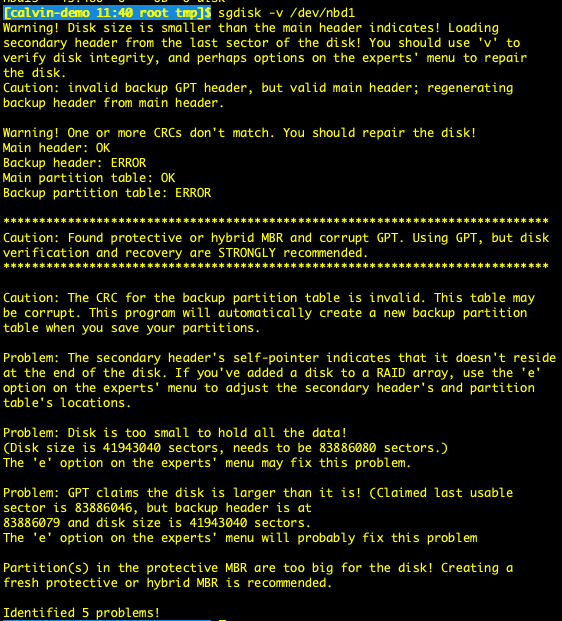
sgdisk -v will report problem
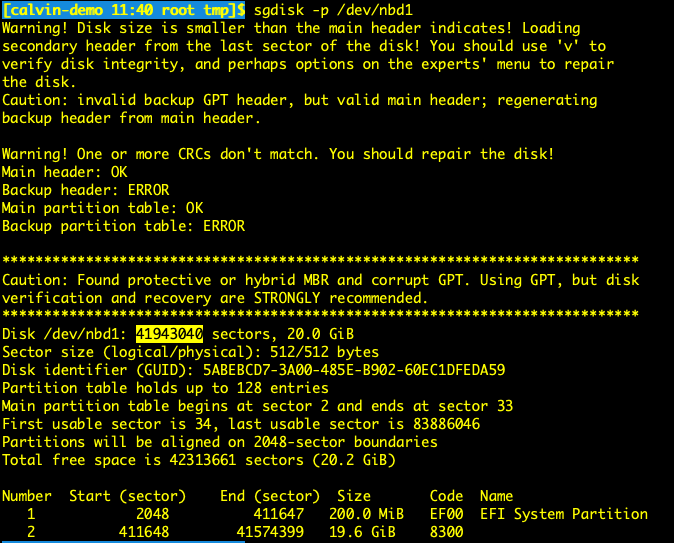
sgdisk -p will show us there are total 41943040 sector with the last sector of partition 2 is 41574399, we are safe to rebuild the GPT backup header.
let sgdisk fix the GPT backup header
sgdisk -e /dev/nbd1
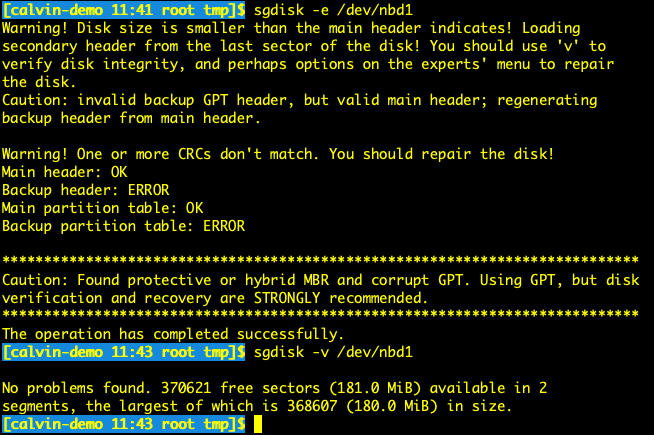
now we are done , we can run any checking command we used earluer to confirm the result
parted /dev/nbd1 unit MiB print
sgdisk -p /dev/nbd1
e2fsck -fn /dev/nbd1p2
lsblk -f /dev/nbd1
sgdisk -v /dev/nbd1
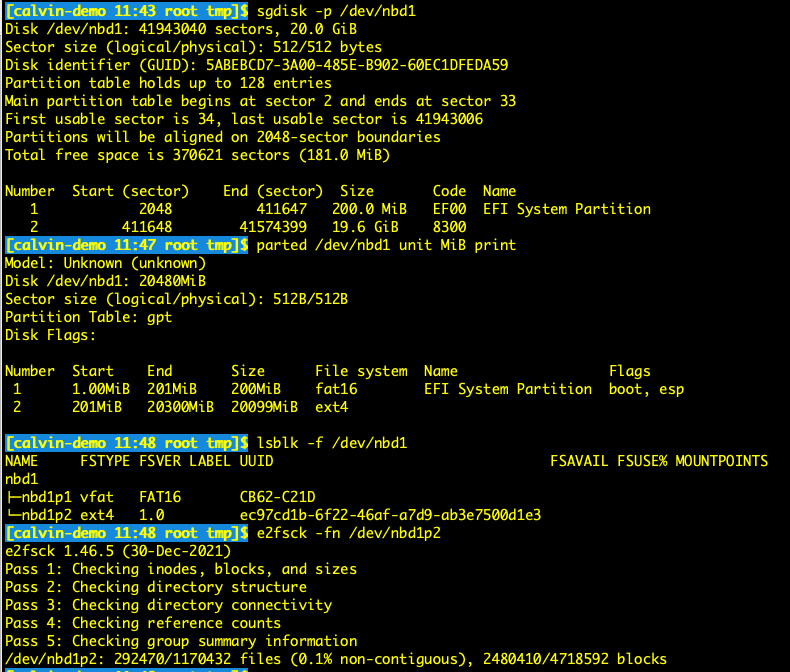
Now we can disconnect the qcow2 with "qemu-nbd --disconnect /dev/nbd1" and upload it again to TOS bucket.
import the new qcow2 file
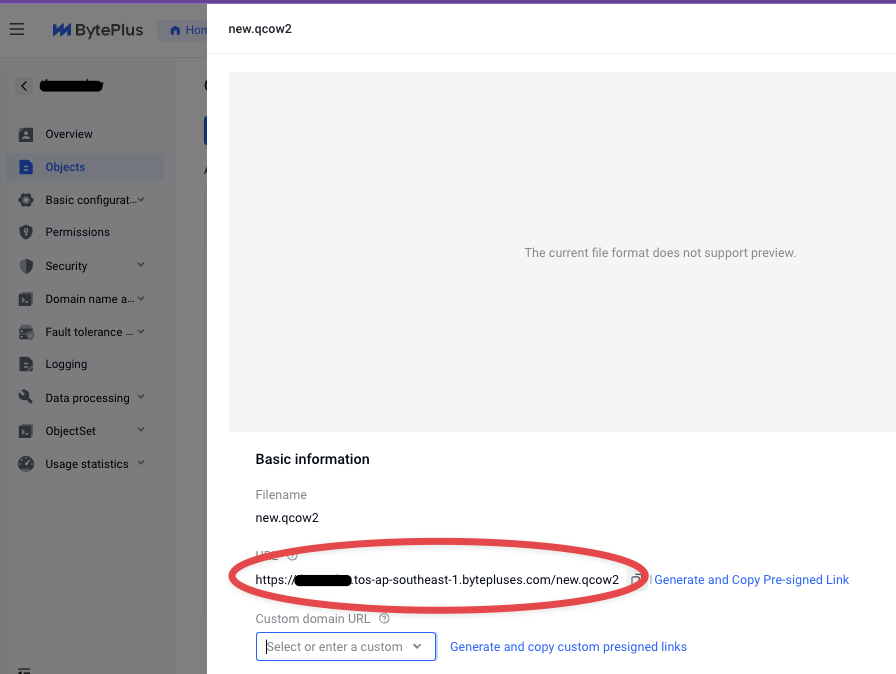
Copy the qcow2 https:// address from file detail in the TOS console,
Remember to choose "UEFI" startup mode when importing.
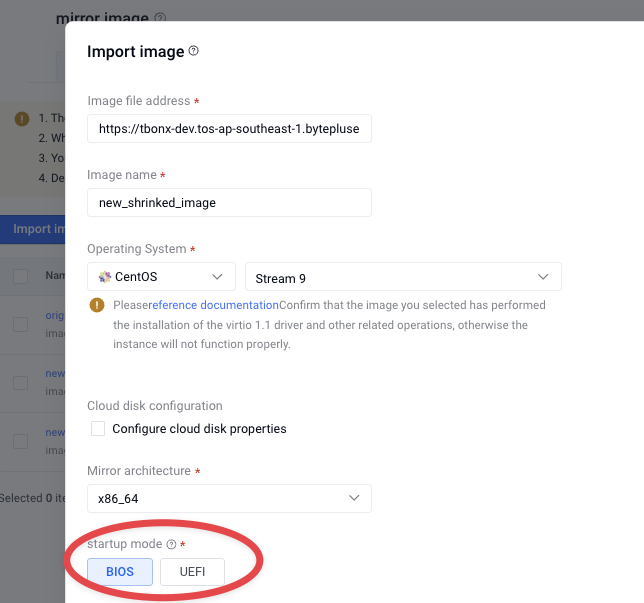
The image size showing 20GB now.

Next we can create instance with this new custom image
If the new instance can not connect with SSH after boot up, check the VNC, it may showing this,
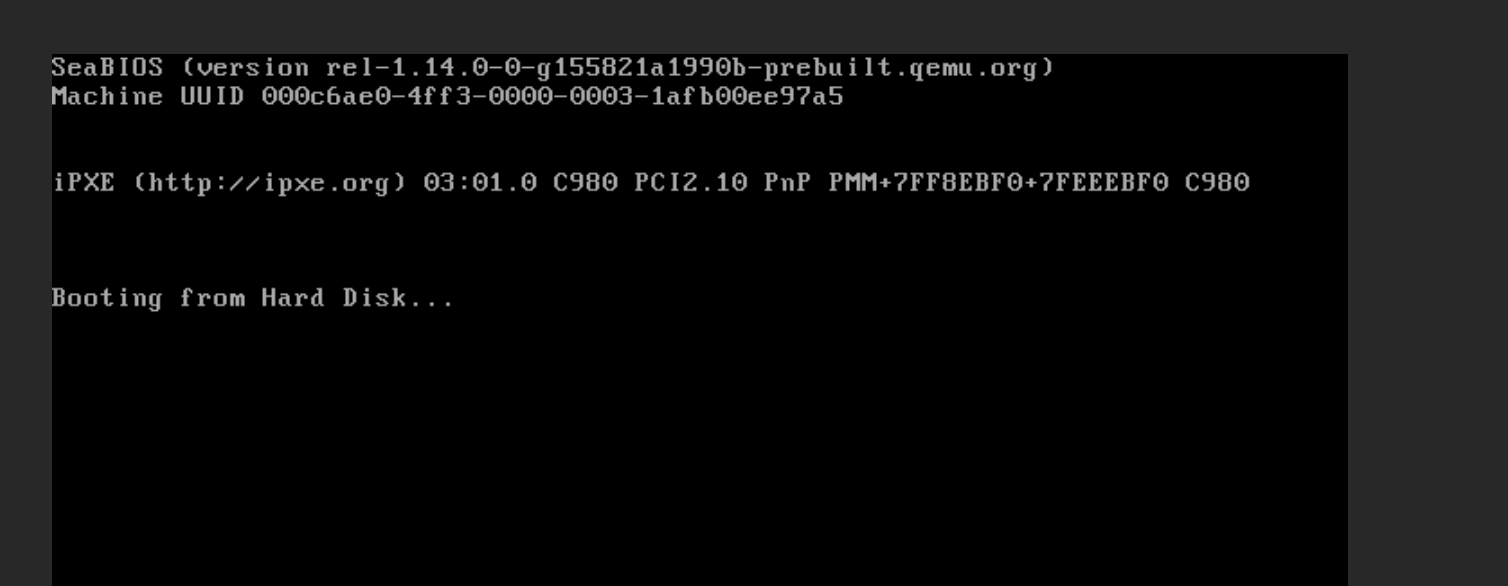
that is because the new custom image startup mode chosen as "BIOS", which is a default option,
Click the image name, change startup mode to UEFI, re-create a new instance from it, all should be fine now.
Above is the disk info in new instance, can see all disk usage are normal as new, so don't worry about the process wasted some space there, and I tried volume expanding working as usual too.
Summary
In short, with exporting / manipulating / importing qcow2 virtual image files, we can shrink a EBS volume which doesn't provided by the cloud provider.
In fact, there was a case of an instance failed to boot up because of initramfs file missing after resize instance, I used the same way fix it while Byteplus support tell me have to copy everything out to new instance from snapshot.
BTW, this way should also works for Alibaba Cloud EBS too, they same support qcow2 images export/import.
Comments
Join the discussionNo comments yet. Be the first to comment.